Detecting Cuts
Press a button, wait a moment, and every change in the picture shows up as a spike in the Spike Graph.
Analyse a clip
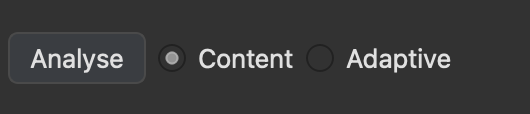
Do one of the following:
- Click Analyse in the lower left corner
- Press Enter
That's it. CutDetectorPro compares every frame with the one before it and draws the difference as a spike. Then you set the threshold to decide which spikes count as cuts.
Pick a detector
There are two ways to analyse a clip. Choose with the Content and Adaptive buttons next to Analyse.
-
Content
The classic detector. It spots hard cuts by measuring how much two neighbouring frames differ. Anything above your threshold is a cut, and you can move the threshold after the analysis is done.
-
Adaptive
Like Content, but it compares each change with a rolling average of the frames around it. Try it when fast camera moves cause false cuts.
Analyse only part of the picture
Got a burn-in that changes with every shot? Analysing just the burn-in is often more accurate than analysing the whole frame.
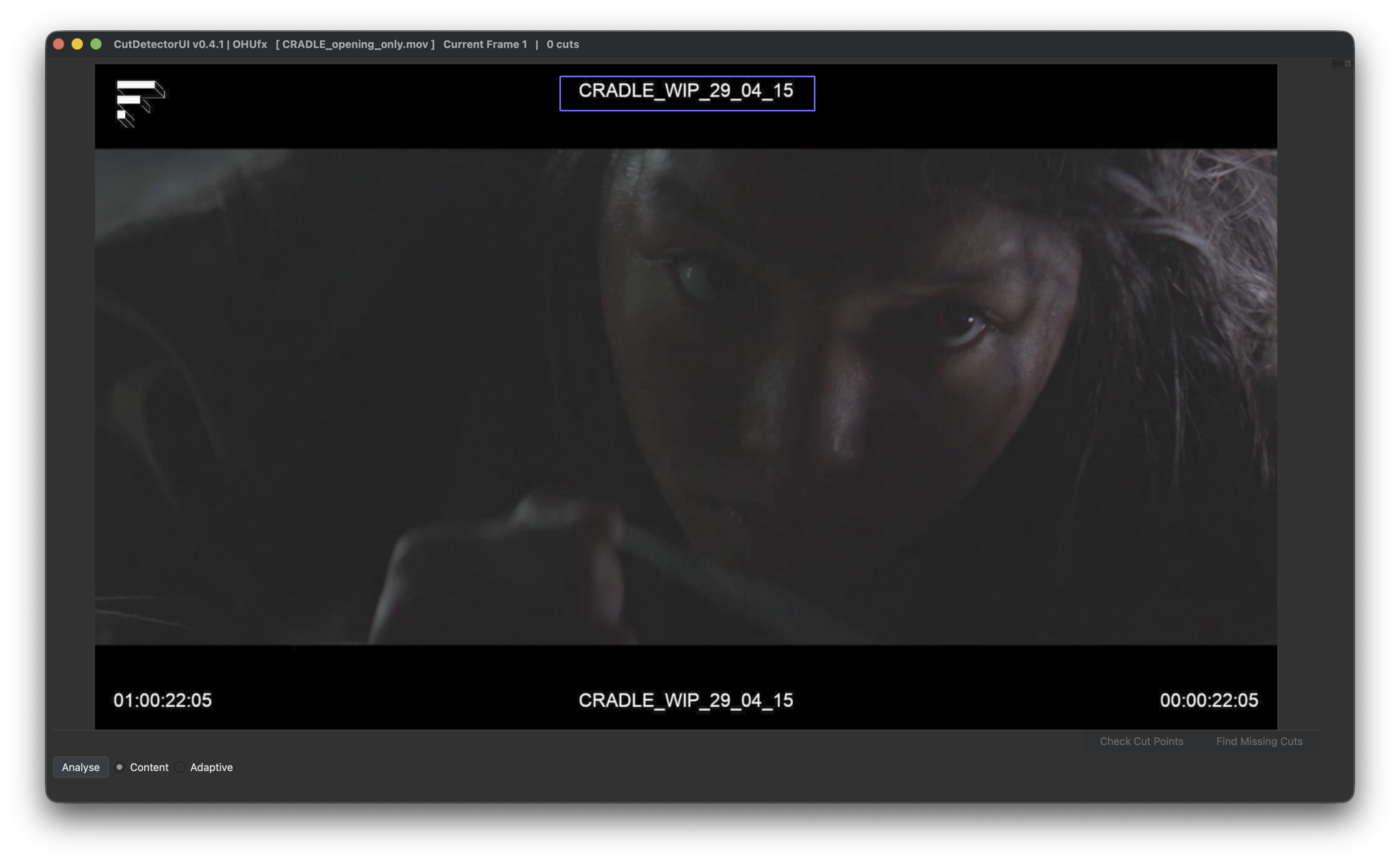
- Hold Ctrl (Cmd on macOS) and drag a rectangle over the region.
- A purple outline shows the area. Only that area is analysed.
- Right-click to delete the rectangle again.
The rectangle always stays on the picture: if you start dragging outside of the image, it's trimmed to the image edge, and if the drag never reaches the image the rectangle is removed.
This is different from a sub-range
The rectangle limits the analysis to a region of each frame. A sub-range limits it to a span of frames. You can combine both.
Re-use a previous analysis
You only ever analyse a clip once. The results are saved automatically, and next time you import the same clip CutDetectorPro offers to load them instead:
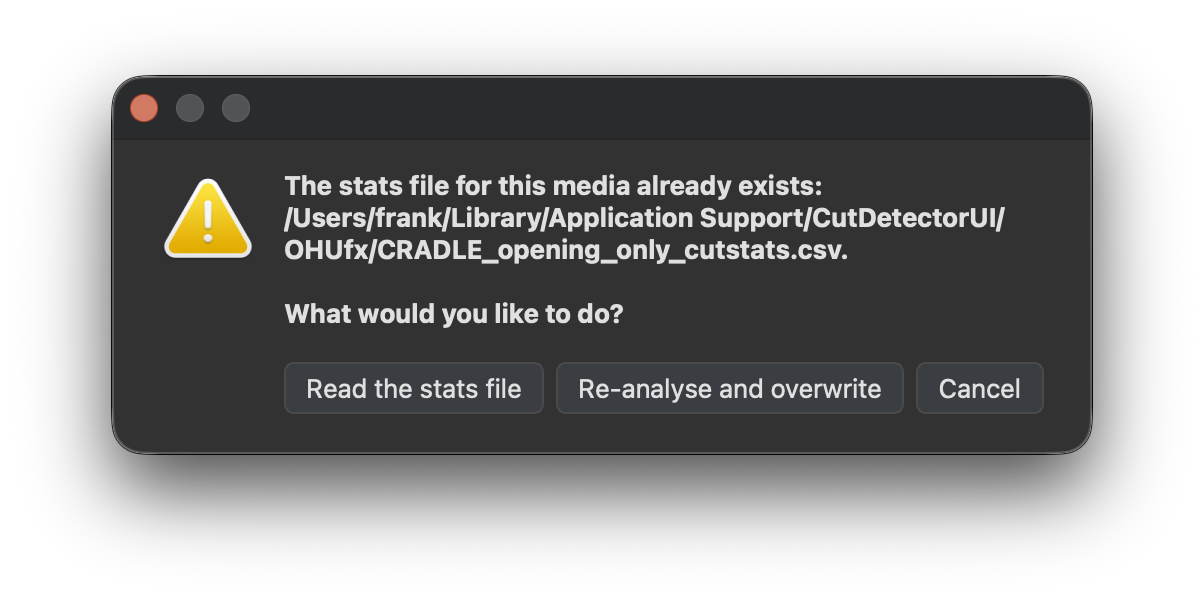
Where the saved analyses live
Each clip gets its own csv file:
- Windows:
%APPDATA%\CutDetectorPro\OHUfx(roaming profile) - macOS:
~/Library/Application Support/CutDetectorPro/OHUfx - Linux:
~/.local/share/CutDetectorPro/OHUfx
You normally never need to look in there.
Sharing your work
Saving a project bundles the analysis data into the .cdui file, so the file is fully portable.
See Import & Sessions.