Text Extraction (OCR)
Burn-ins hold gold: shot names, source timecodes, version numbers, VFX notes. CutDetectorPro can read them for you and put the text in your Shots Table, one row per shot. Then you can clean it up until it matches your pipeline's naming.
Powered by Tesseract
Text extraction uses the free Tesseract engine, which comes with CutDetectorPro on most systems. It reads English text. On other systems, install Tesseract and CutDetectorPro finds it automatically.
Extract text from the image
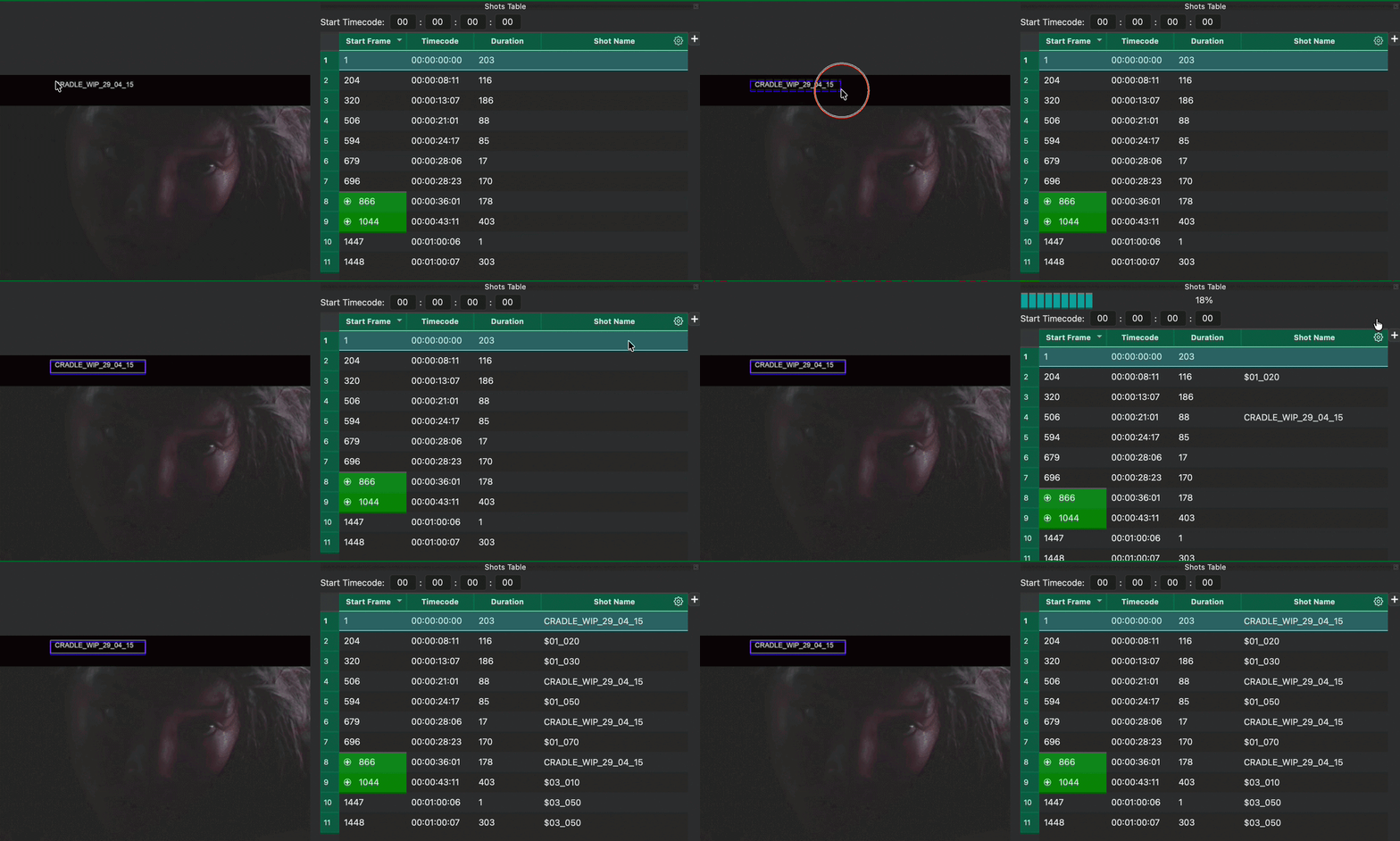
- Switch to Preview Mode (click Check Cut Points).
- Hold Ctrl (Cmd on macOS) and drag a rectangle around the text you want, for example part of a burn-in.
- Click the icon in the header of the column that should receive the text.
CutDetectorPro reads that area for every shot and fills the column.
Don't have a column yet? Add one first.
The rectangle stays on the picture
If you start dragging outside of the image, the rectangle is trimmed to the image edge. If the drag never reaches the image, the rectangle is removed again.
What if it says \"Tesseract not found\"?
Clicking the icon shows a Tesseract not found message when CutDetectorPro can't find Tesseract.
Install it and select it in Preferences, or set CDUI_TESSERACT_PATH. See Install & Activate.
If a cell shows [ERROR: tesseract not found] or [ERROR: tesseract failed] instead of text, the same applies.
Clean up the text
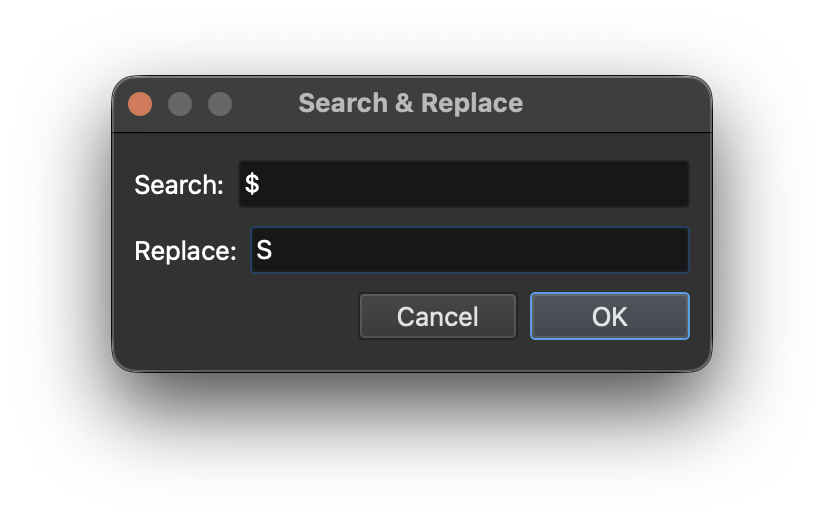
OCR isn't perfect. In the recording above, for example, an "S" sometimes came through as a "$". You have two tools to fix that and to reshape the results.
Search & replace
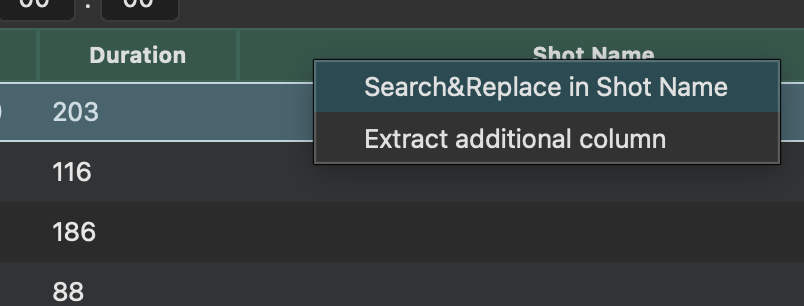
Right-click a column header and choose Search&Replace.
Split a column into new ones
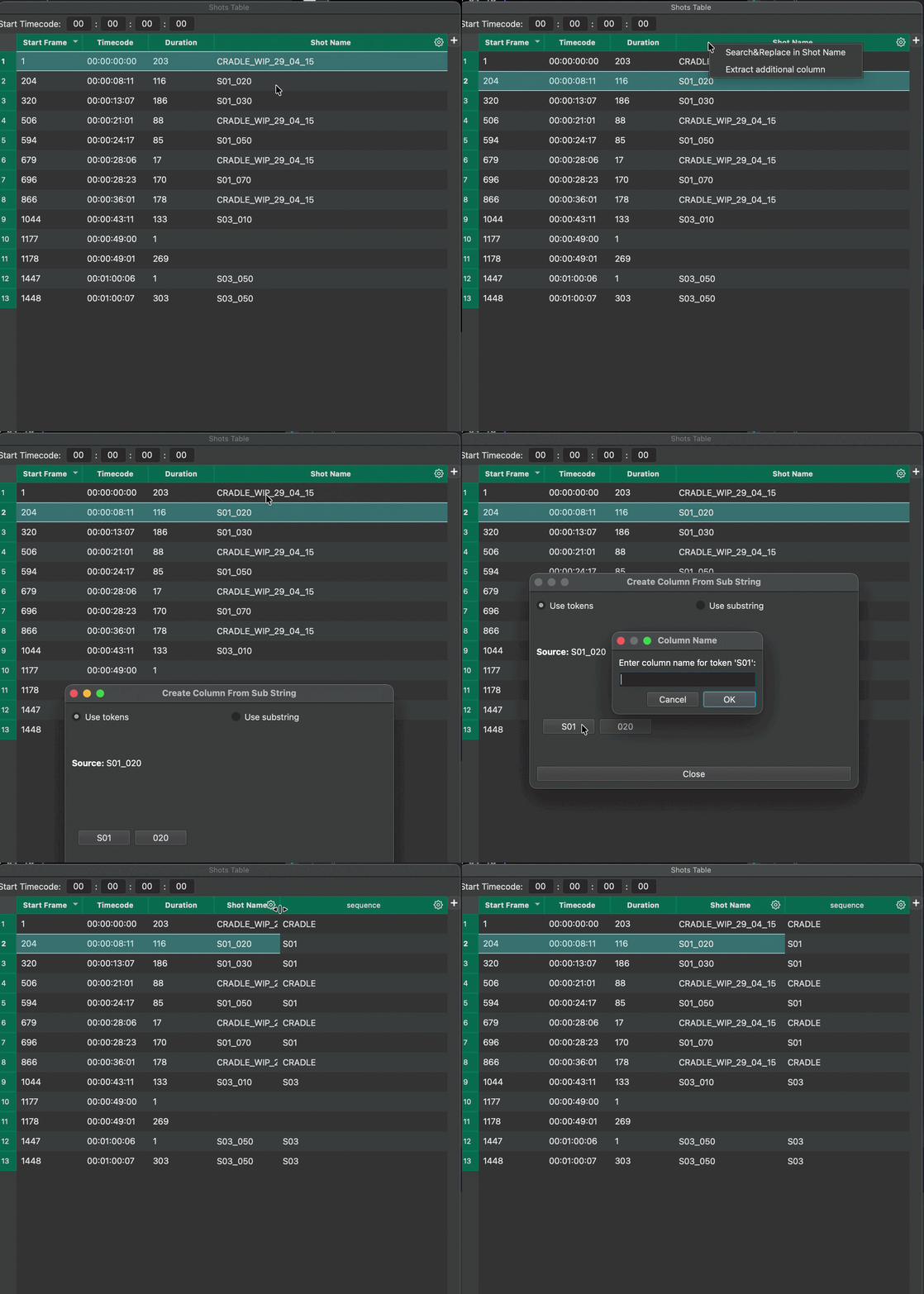
Say your "Shot Name" column holds values like S01_010, and you also want a "Sequence" column with just S01.
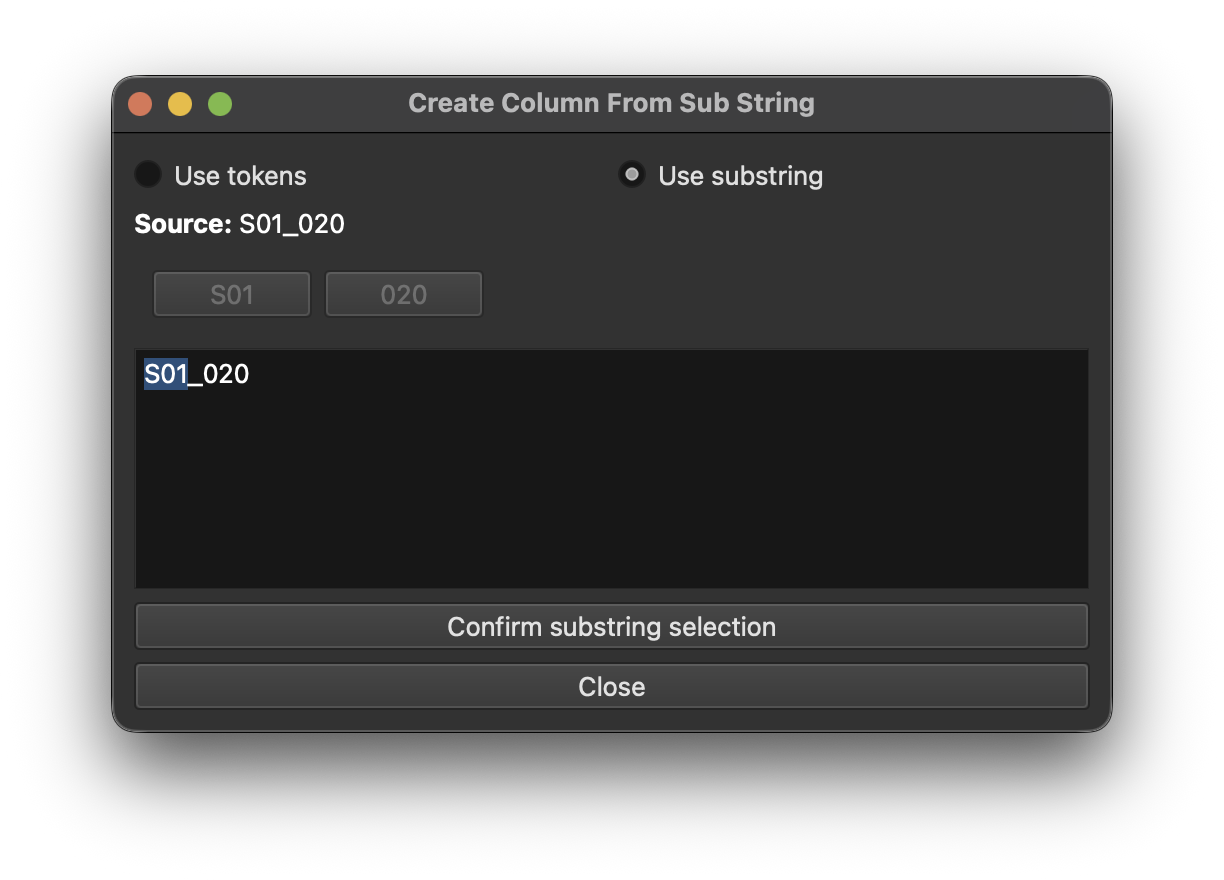
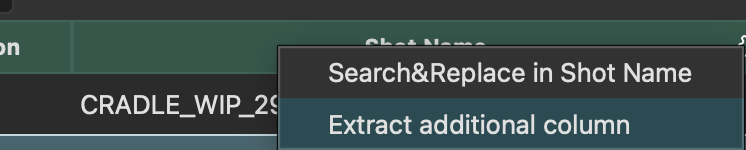
Right-click the Shot Name header and choose Extract Additional Column. The new column needs a unique name.
Pick your preview
The dialog previews the value of the row that is selected in the table, so select a representative row first.
There are two ways to pick the part you want:
CutDetectorPro splits the text at these characters: _ (underscore), . (period), - (hyphen) and a space.
Every part becomes a button. Click the part you want, and a prompt asks for the new column's name.
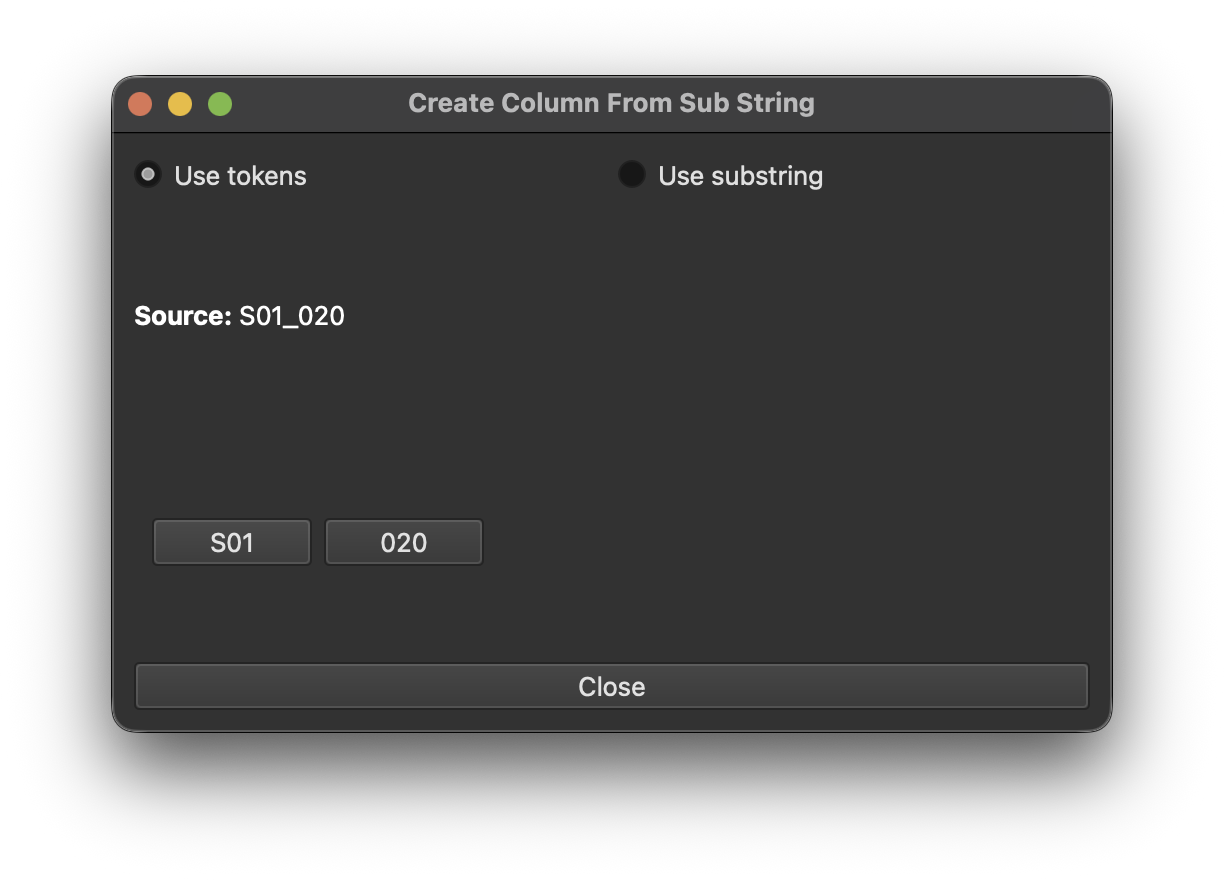
Prefer to pick by letter position? Switch to Use Substring and select the letters that hold what you need. Click Confirm substring selection and name the new column.