Shots Table
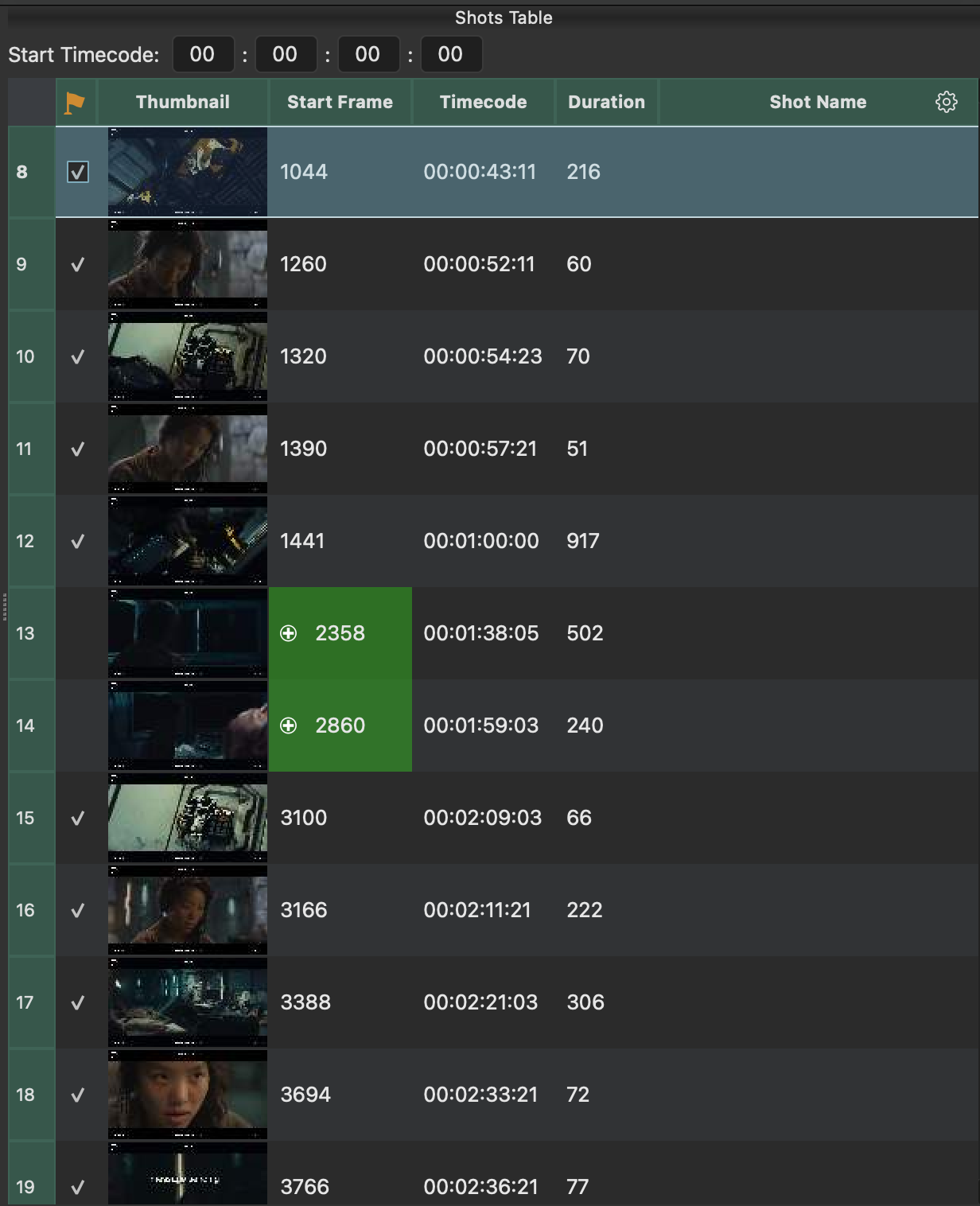
The Shots Table is your result: what you see here is what gets exported. So the goal of everything else is to make this table exactly what your workflow needs.
Where the rows come from
Every row is a spike in the Spike Graph that is above the threshold, plus every cut you added by hand.
- Delete a shot by selecting the row and pressing Del or Backspace. The frame is blacklisted, so it stays gone if the threshold changes. Blacklisted frames are drawn red in the graph.
- Added cuts (whitelisted frames) always get a row, whatever the threshold. They are highlighted in green with a icon, and drawn as green spikes in the graph.
See Review & Fix Cuts for how to add and remove cuts.
Tear it off
The Shots Table can be torn off from the main window and used as a floating panel.
The default columns
| Column | What it holds |
|---|---|
| Start Frame | The first frame of the shot |
| Timecode | The timecode of that frame. You can set a start timecode above the table to change it. |
| Duration | The length of the shot in frames |
| Flag | A checkbox for picking specific shots to export. See Exporting. Click the column header to toggle all flags at once. |
Columns after those hold text. They are marked with a icon when they can receive text from the text recognition, and you can also edit them by hand.
Sort the table
Want the longest shots first, or the shots in name order? Click a column header.
- First click: sorts ascending. A small arrow on the header shows the sort.
- Second click: sorts descending.
- Third click: back to the original order, which is the order the shots appear in the clip.
If the table is already in ascending order (for example when you click Start Frame on a fresh table), the first click goes straight to descending, so a click always changes something you can see.
- Numbers sort as numbers (Start Frame, Timecode and Duration), and text sorts in natural order without caring about case, so
shot_2comes beforeshot_10. - The Thumbnail header doesn't sort, and the Flag header still toggles the flags.
- The sort stays as you add, delete or edit shots, and the table scrolls to keep the current shot in view.
Sorting only changes what you see
Exports, saved sessions and text extraction always use the shots in time order, whichever way the table is sorted. The keys that jump to the previous and next cut (Page Up / Page Down and Up / Down) also follow the clip's time order.
Add your own columns
Click the button in the upper right corner of the table to add a column with a name of your choice, such as "VFX Notes".
Custom columns can receive OCR text or hold the result of splitting another column, for example to pull a sequence name out of a shot name.
Right-click a custom column's header to rename it (Rename Column...) or remove it (Delete).
Column names have to be unique
A column name can't be empty, and it can't match another column, ignoring upper and lower case and spaces around it. That includes the built-in columns, so you can't add a second "Duration". If a name is taken, CutDetectorPro tells you why and asks again. The button suggests a free name for you (for example "notes 2"). Names identify the columns in your exports and saved sessions, which is why they can't repeat.
Next: get text into the table
-
Text extraction (OCR)
Read shot names, timecodes and notes straight off the burn-in.
-
Export
Send the table to editorial, reports, media or your tracker.