Import & Sessions
Getting a clip into CutDetectorPro takes one drag. Getting it back later takes another.
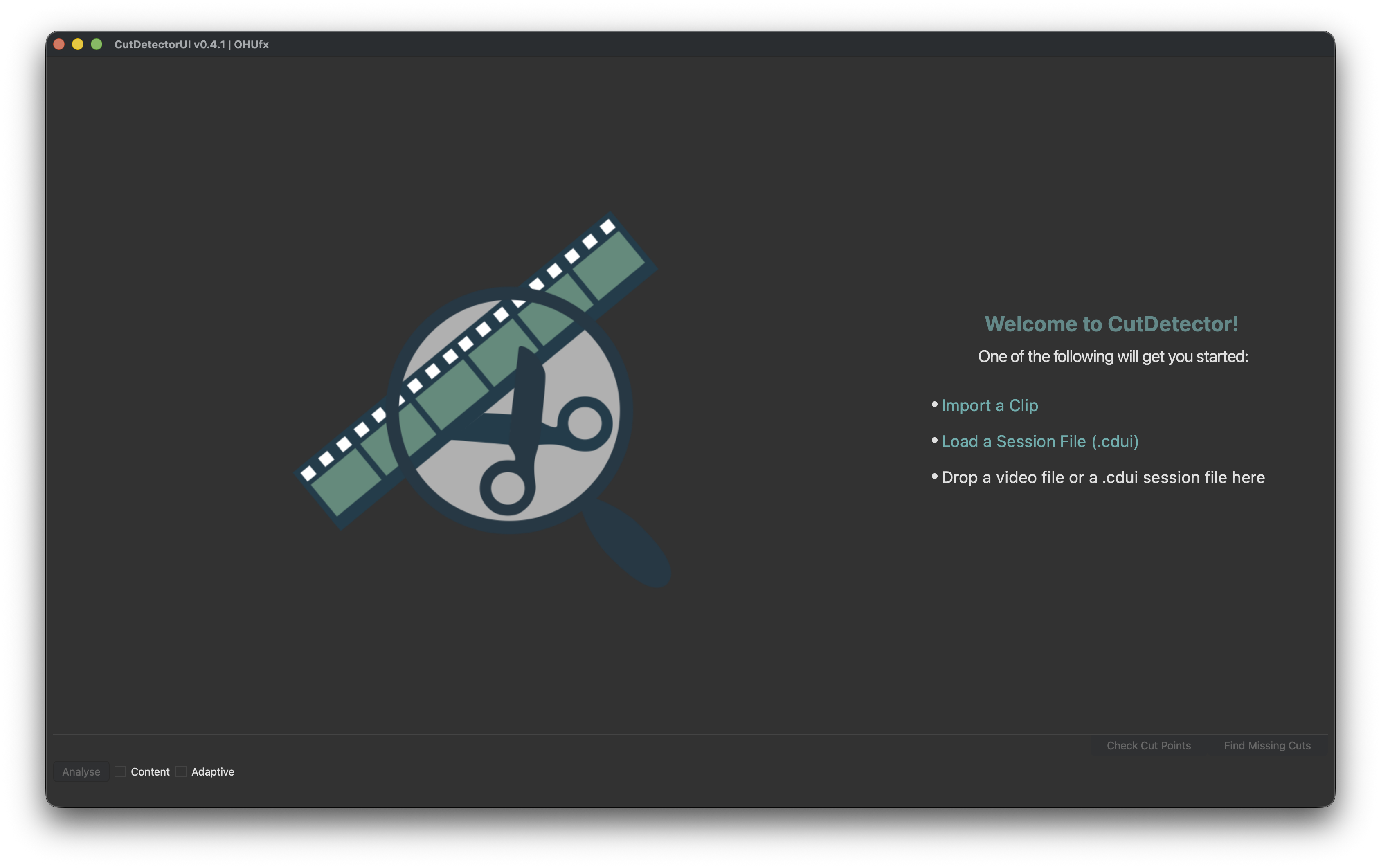
Import a clip
Pick whichever you like best:
- Drag & drop a video file into an empty window
- Click Import a Clip on the landing page
- Choose File → Import Clip... from the menu
- Press Ctrl+I (Cmd+I on macOS)
Which video formats work?
CutDetectorPro reads video through PySceneDetect and OpenCV,
so it opens the formats those can decode. That covers the common containers such as .mov, .mp4, .mkv and .avi.
The import dialog doesn't filter by file type, so you can pick any file and see if it opens.
If a clip won't open, transcode it to an h264 .mp4 and try again.
Save and reload your work
Everything you do lives in a session: the analysis, your threshold, every manual edit and your text columns.
Save it as a .cdui file with Ctrl+S (Cmd+S on macOS).
A session file is fully portable. The analysis data is stored inside it, so it opens instantly on any machine and you can hand it to a colleague.
To load one:
- Drag & drop a
.cduifile into an empty window - Click Load a Session File on the landing page
- Choose File → Load Session... from the menu
- Press Ctrl+O (Cmd+O on macOS)
You don't have to save just to avoid re-analysing
CutDetectorPro also remembers the analysis of every clip on its own, and offers to reuse it next time you import that clip. See Re-use a previous analysis.
What's next?
-
Detect cuts
Press Analyse and let CutDetectorPro do the work.
-
Only part of the clip?
Set in and out points before you analyse.