Review & Fix Cuts
The automatic detection gets you most of the way. This is where you make sure the cut list is right.
Two questions matter, and CutDetectorPro has a mode for each:
-
Are my cuts real?
Preview Mode shows the frame before and the frame at each cut, side by side.
Button: Check Cut Points
-
Did I miss any?
Contact Sheet Mode shows every frame of a shot at once, so a missed cut jumps out.
Button: Find Missing Cuts
Switch between the two with the buttons above the graph, or press ` (the backtick key).
Preview Mode: check the cuts you have
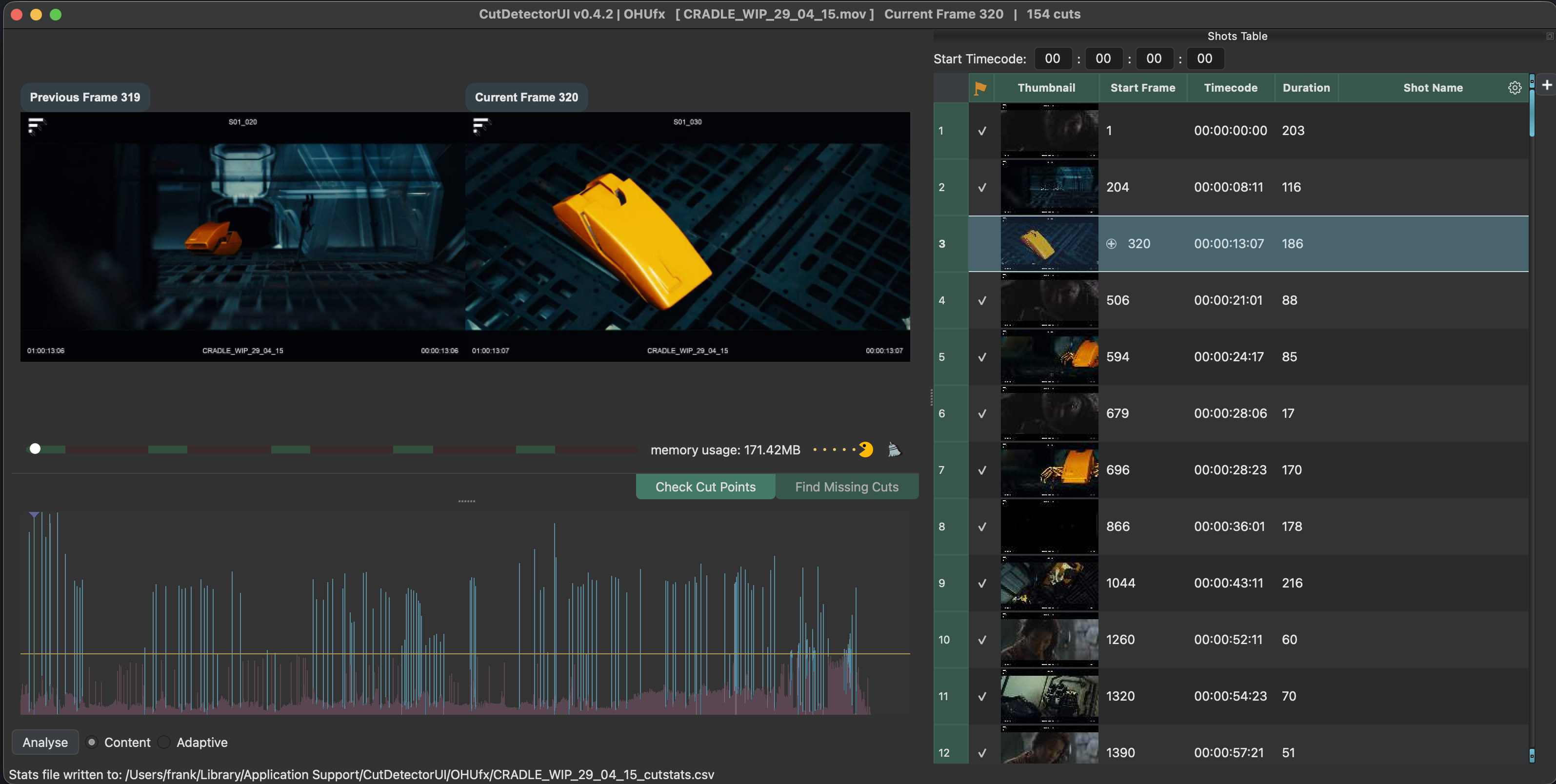
The right viewer shows the current frame, the one under the playhead in the Spike Graph. The left viewer shows the frame before it. The frame number is also listed in the "Start Frame" column of the Shots Table.
- Press Page Down to jump to the next cut. (Page Up goes back.)
- Look at the two viewers. They should show two different shots.
- If they look the same, it's a false positive. Press Del or Backspace to remove it.
Removed cuts are remembered (they are blacklisted), so moving the threshold later won't bring them back.
Contact Sheet Mode: find the cuts you missed
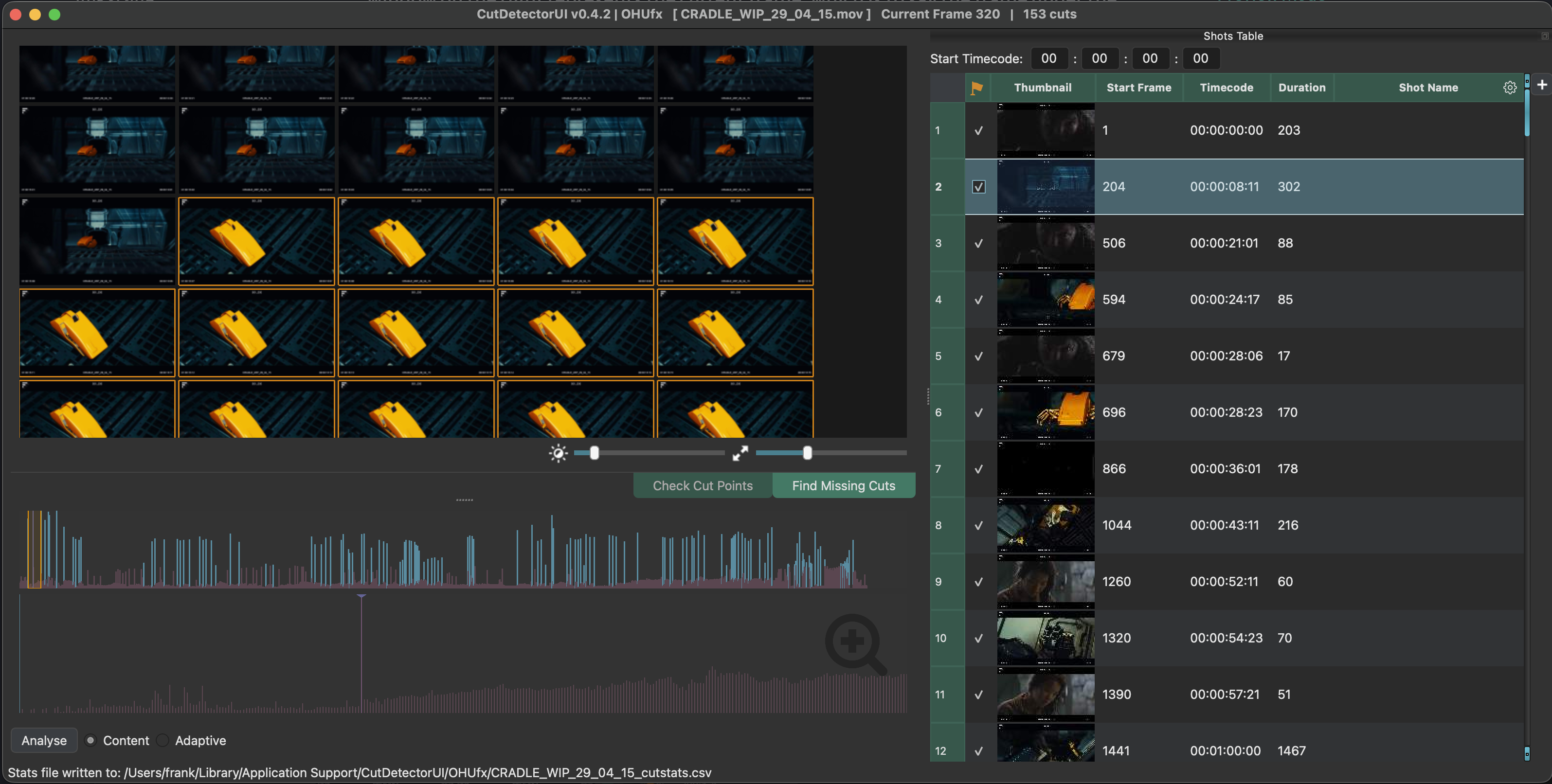
All frames of the current shot are laid out on a sheet, so it's easy to see where a new shot begins. Click the first frame of the new shot (or move to it with the arrow keys) and press C to add the cut.
Full details are on the Contact Sheet page.
Fix things by hand
You can also edit straight in the graph, or use the context menu:
| Action | Shortcut |
|---|---|
| Paint-select spikes in the graph | Alt + click & drag |
| Add the selected spikes as cuts | A |
| Add a cut at the current frame | C |
| Delete the selected spikes | D |
| Delete the cut at the current frame | Del / Backspace |
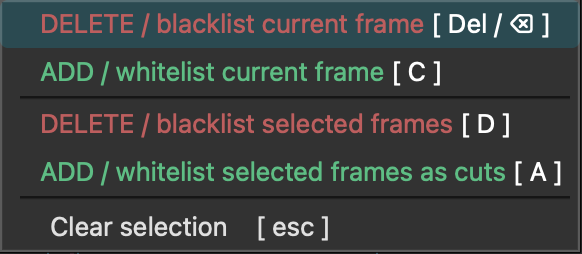
Your edits stick
Cuts you add are whitelisted and cuts you delete are blacklisted. They stay that way even if you move the threshold afterwards. Added cuts are green in the Shots Table and the graph, deleted ones are red in the graph.
Which one should I use?
Both modes are the recommended way to edit, because you see exactly which frame you're cutting on. You can also select spikes in the graph and add or remove them, but in that workflow the frames themselves aren't visible.